



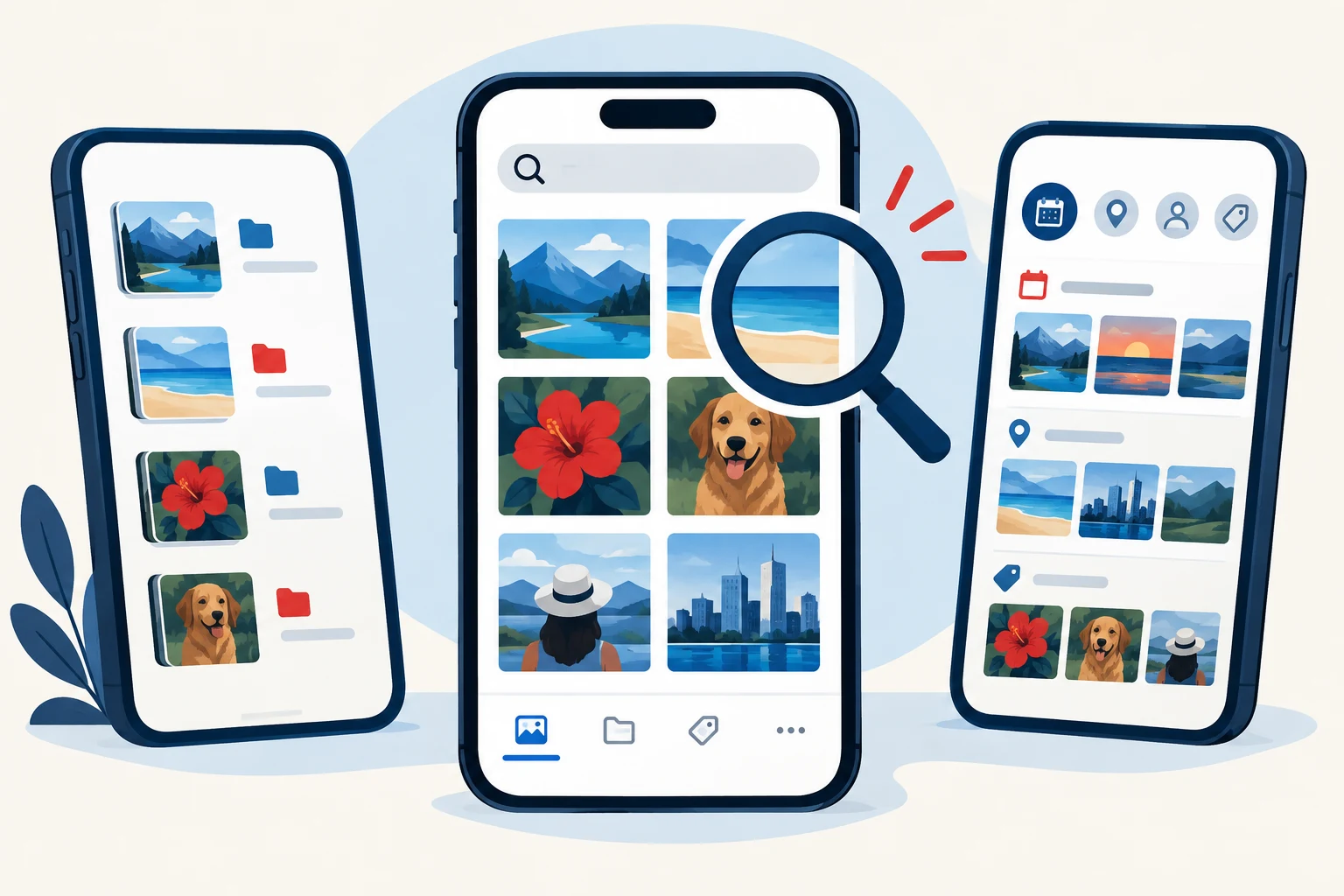
A photo library can include family pictures, screenshots and images saved for practical reasons. Finding a specific item later may be easier if users add their own labels or use the search and album tools already available on their phones, according to the supplied guidance.
On Apple devices, the source describes adding keywords to individual pictures in the Photos app. It says its instructions were tested on an iPhone 15 Pro running iOS 27. Users can assign a word they are likely to remember, such as “license plate,” to a picture of a vehicle’s plate, or use a trip name for vacation photographs. Searching by that keyword can then bring up the labeled image.
The source also says users can manage keywords through Photos, Collections, the profile icon and Manage Keywords. Available controls include renaming or deleting keywords and marking frequently used ones as favorites. It recommends starting with images that are genuinely difficult to locate, such as records, appliance labels or travel information, rather than trying to label an entire library at once.
Samsung Galaxy phones offer manual tagging through the built-in Gallery app on compatible devices. The exact controls can differ by model and app version. The source notes that some users may need to select Edit in a picture’s details to add a tag, and suggests checking for an app update if the option is not visible. Once tagged, a picture can be found using Gallery search. Product names or appliance model information are examples of labels that might be useful later.
Albums provide another way to group related pictures on Samsung phones. A household-repair album, for instance, could hold images of paint colors, appliance labels and receipts. This approach gathers several related items together, while tags can make an individual picture searchable.
Google Pixel users are described as having a different option through Google Photos. Rather than requiring a user to label each image, its search can use automatic recognition of objects and other content. A person might search for terms such as “dog,” “beach” or “receipt.” Results depend on what the app recognizes, so a search may not identify the intended image every time; trying another term may help.
Google Photos users can also create albums for occasions or practical records and find them under Collections, then Albums. The source further says that, on supported versions, backed-up pictures of receipts and other paperwork that the service recognizes may appear in a Documents collection. Users can check under Collections and Documents. That feature depends on the app identifying the images and on the pictures being backed up.
The source’s general advice is to use straightforward labels that are easy to recall. A broad phrase such as “kitchen repair,” it says, may be more memorable than a precise date. It also advises trying the app’s search before building numerous albums, since automatic recognition may already locate some images.
Organization does not replace a backup, the source cautions. Important pictures should also be protected with a trusted cloud service or another reliable backup method. For sensitive images, users should consider whether they want them stored in a cloud account. The practical approach offered is to begin with a small set of photos likely to be needed again, then use labels, albums or built-in search as appropriate to the device.